Mark what is still open
A diagram tends to look more decided than the conversation that produced it. A box or an arrow can stand for a working assumption, a rough first approach, something a colleague still has to agree to, or an idea put off on purpose. Open points let you say so on the drawing itself, in a couple of clicks, attached to exactly the shape or connector it concerns, without the architecture becoming harder to read.
An open point is a note in the margin, not a shape: it never moves a connector, resizes a box or changes what a relationship means. And the absence of one means only that nothing was noted. It never means "verified", "approved" or "built".
The three kinds#
| Kind | Meaning | Context you might add |
|---|---|---|
| Tentative | A working assumption or approach that has not been settled. | "This may need to be asynchronous." |
| Awaiting input | A specific answer, review or agreement is still needed from someone. | "Confirm the interface with the owning team." |
| Parked | The topic has deliberately been put off. | "Revisit after the first release." |
These are descriptions, not stages. A parked topic can be perfectly well understood, and waiting on someone says nothing about how sure anybody is. Rough estimates and constraints belong in the context text: "Rough estimate: a few days; depends on the interface decision."
Raise one during the meeting#
- Select a shape, a connector or a boundary. Several elements selected at once make one shared point about all of them.
- Press
I, or right-click and choose Add open point… (also in the command palette,⌘K, and from the keyboard withShift+F10). - Click Tentative, Awaiting input or Parked. The marker is on the element straight away.
- Optionally type a sentence of context. Enter commits and closes; Shift+Enter starts a new line; Escape closes and puts focus back on the marker.
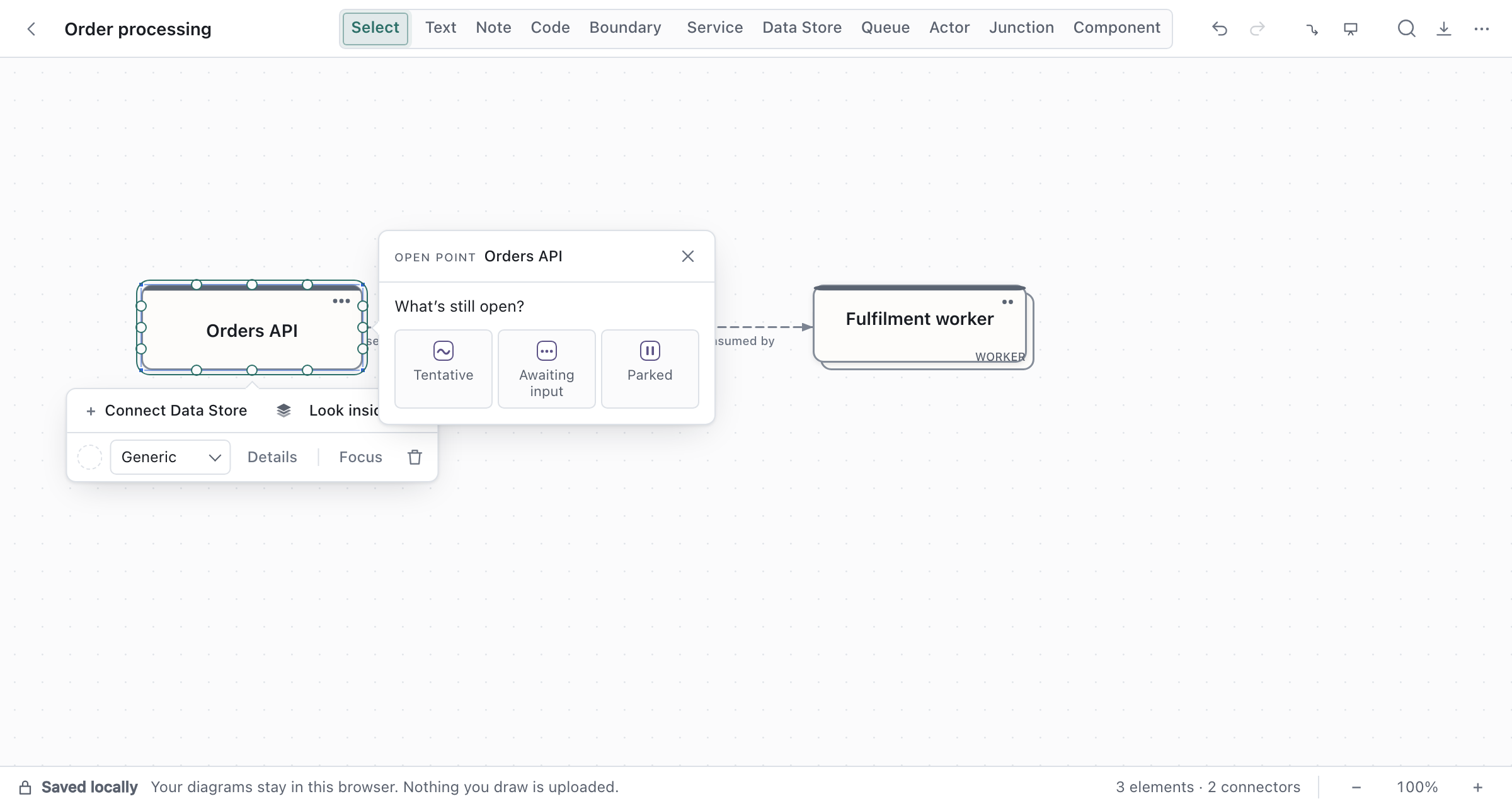
The marker is a small violet tab off the shape's top-right shoulder, or inside a boundary's corner, or beside a connector's label. Each kind has its own glyph, a wave, an ellipsis and a pause mark, so the meaning never rests on colour alone. Several points on one element fold into one tab carrying their count.
Hover a marker, or focus it from the keyboard once its element is selected, for a preview of the kind and the context. Click it to open the point: change the kind, edit the context, Resolve it, or delete it. A point shared with other elements says so, and Not this one detaches just this element.
Come back to it#
The status bar shows how many points are still open. Click it for the Open points list: each point, what it says, and the elements it is about, wherever in the file they live. A row takes you to the element and opens its point; Focus open points dims everything that carries no marker, without moving or changing anything, and Exit focus (or Escape) brings the rest back.
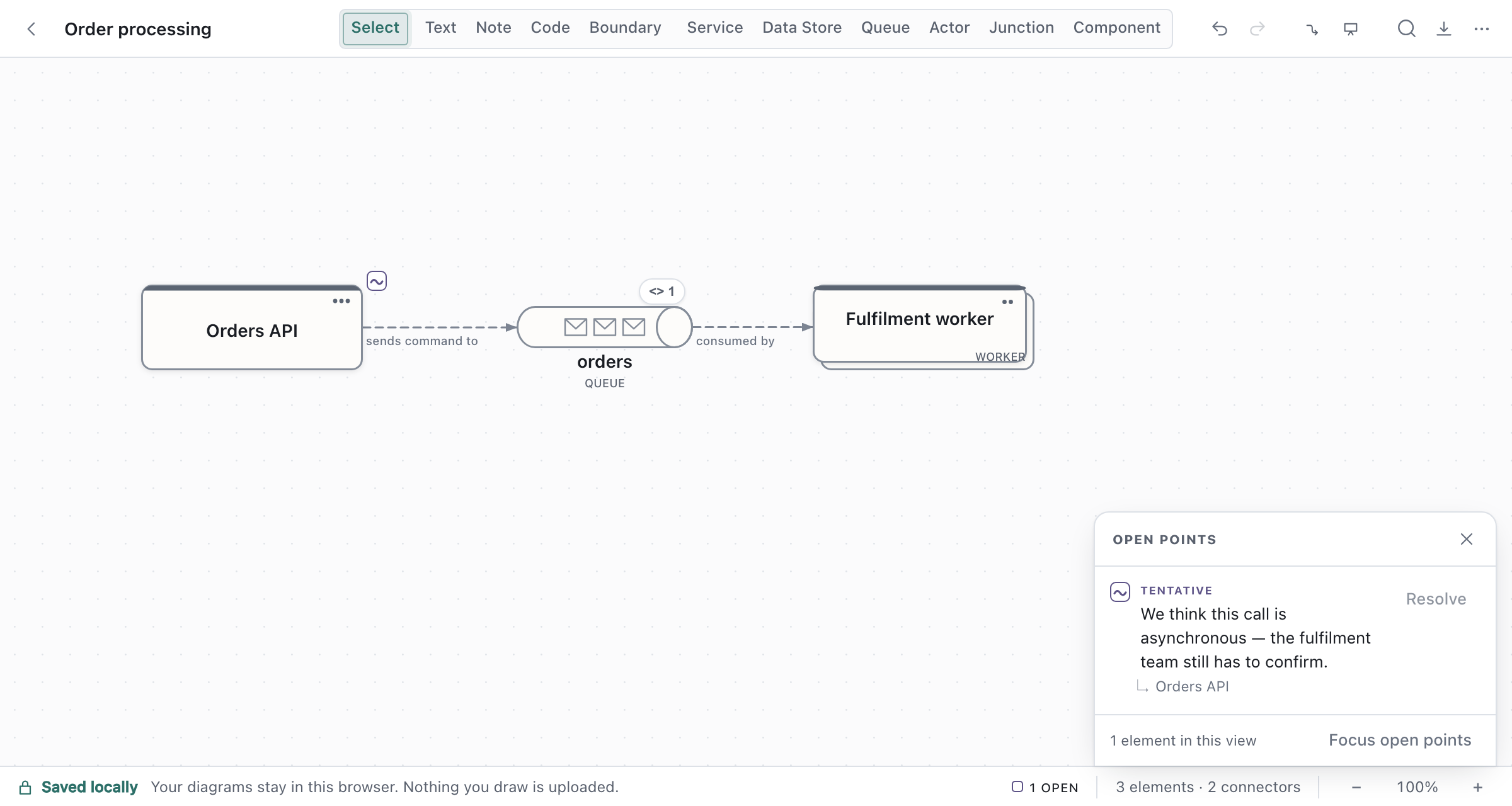
Resolve says the discussion moved on. The marker goes and the count drops; the shape, the connector and the rest of the drawing are untouched. You can add a short note about how it was settled, but you don't have to. Resolved points stay in a collapsed section of the list, where they can be reopened or deleted. Nothing resolves on its own because time passed.
Presenting and exporting#
While presenting, the markers stay on the diagram, and clicking one shows the point read-only, so you can say "this part is still open" without an editing surface appearing over the story.
Image exports (PNG and SVG) keep the markers by default and add a small key naming the kinds that
appear, since a picture has no hover. Untick Open point markers in the Export dialog for an image
without them. The .draftcanvas file always carries every point, resolved ones included. Mermaid and
PlantUML sequence diagrams have no way to express them and leave them out.
Good to know#
- Deleting an element removes the point attached to it. A point shared with other elements stays on those; undo brings both the element and its point back.
- Copying or duplicating a marked element gives the copy its own point, about the copy.
- A point on a boundary is about the boundary as a whole. It does not mark the shapes inside it.
- An AI agent connected to the desktop app can read the points and, when asked, raise, change or resolve them through the same review flow as any other change. Accepting a proposal never resolves a point on its own.