Sharing
Send your skills or improvements to your library as a pull/merge request for review. Habi prepares the change, shows every file before it leaves your machine, and hosts decide what gets merged.
Before you start#
✓ A Git library (remote or local clone)
✓ Git configured with name & email (git config --global user.name / user.email)
✓ Optional: gh (GitHub) or glab (GitLab) for opening PRs from Habi
Without the CLI tools, Habi still pushes the branch—you open the PR manually on the host.
The sharing flow#
Three separate actions (never mixed):
- Refresh a library — fetch updates (no project changes)
- Update an installed item — apply library changes to your project
- Contribute — this page; prepare & send your changes for review
Step 1: Connect your library#
Once per library. Go to Connect a library → Connect a Git repository and paste its address. Habi reads the host, repository, and default branch. It uses your existing Git credentials.
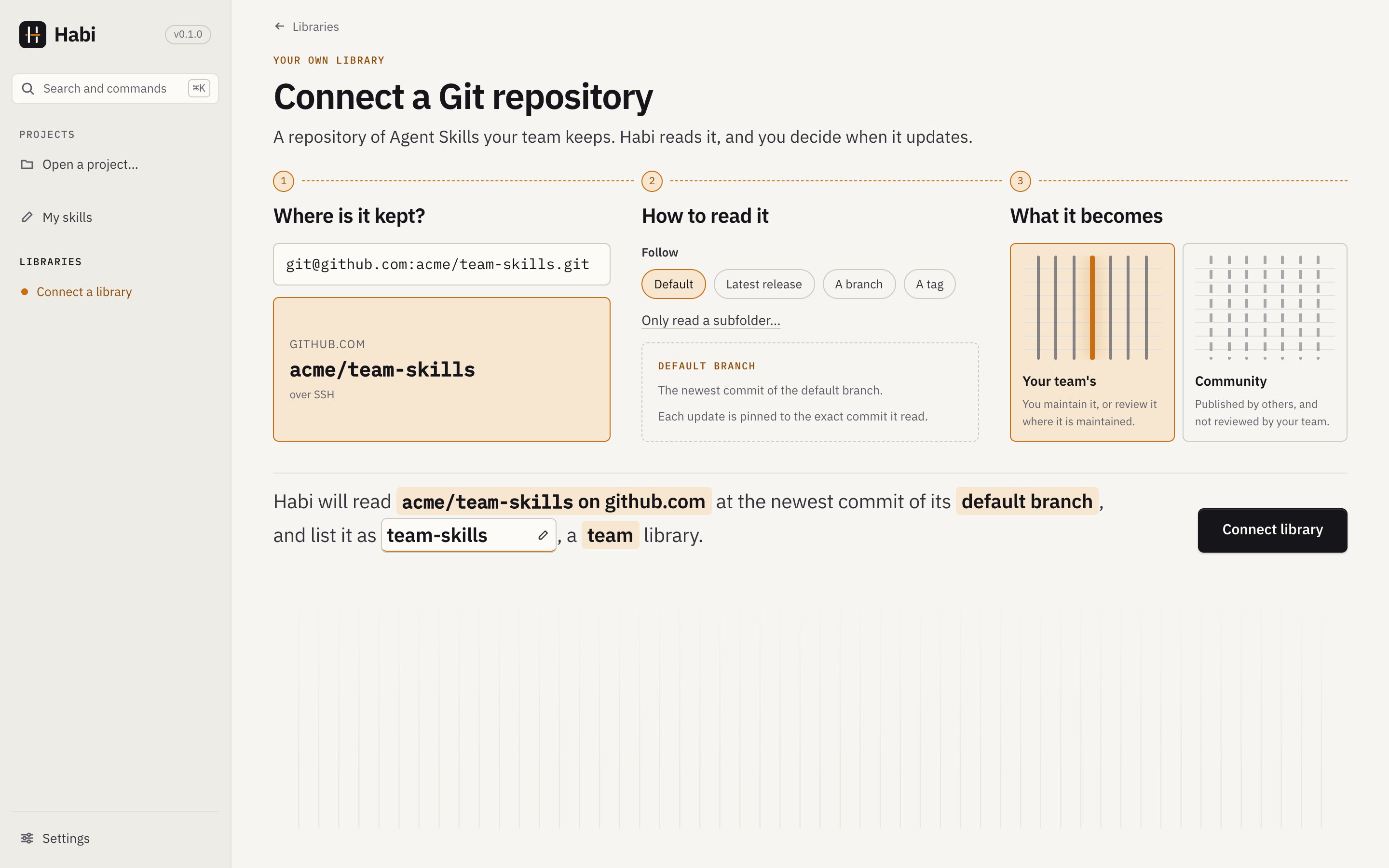
You can also connect from the share dialog in Step 2.
Step 2: Share the skill#
Open the skill in My skills → Share and pick the library.
No data leaves yet. If you have no Git library, use Export as zip… to send the skill manually.
Continuing a contribution? If this skill already has a pending PR/MR, choose Continue sharing to update it with your latest edits.
Step 3: Review & validate#
The contribution page follows these steps down one thread: Review, Prepare branch, then the send step. A knot fills as each step really happens. It shows every file compared to the library: added, modified, renamed, removed, or unchanged. Changed files appear first with diffs.
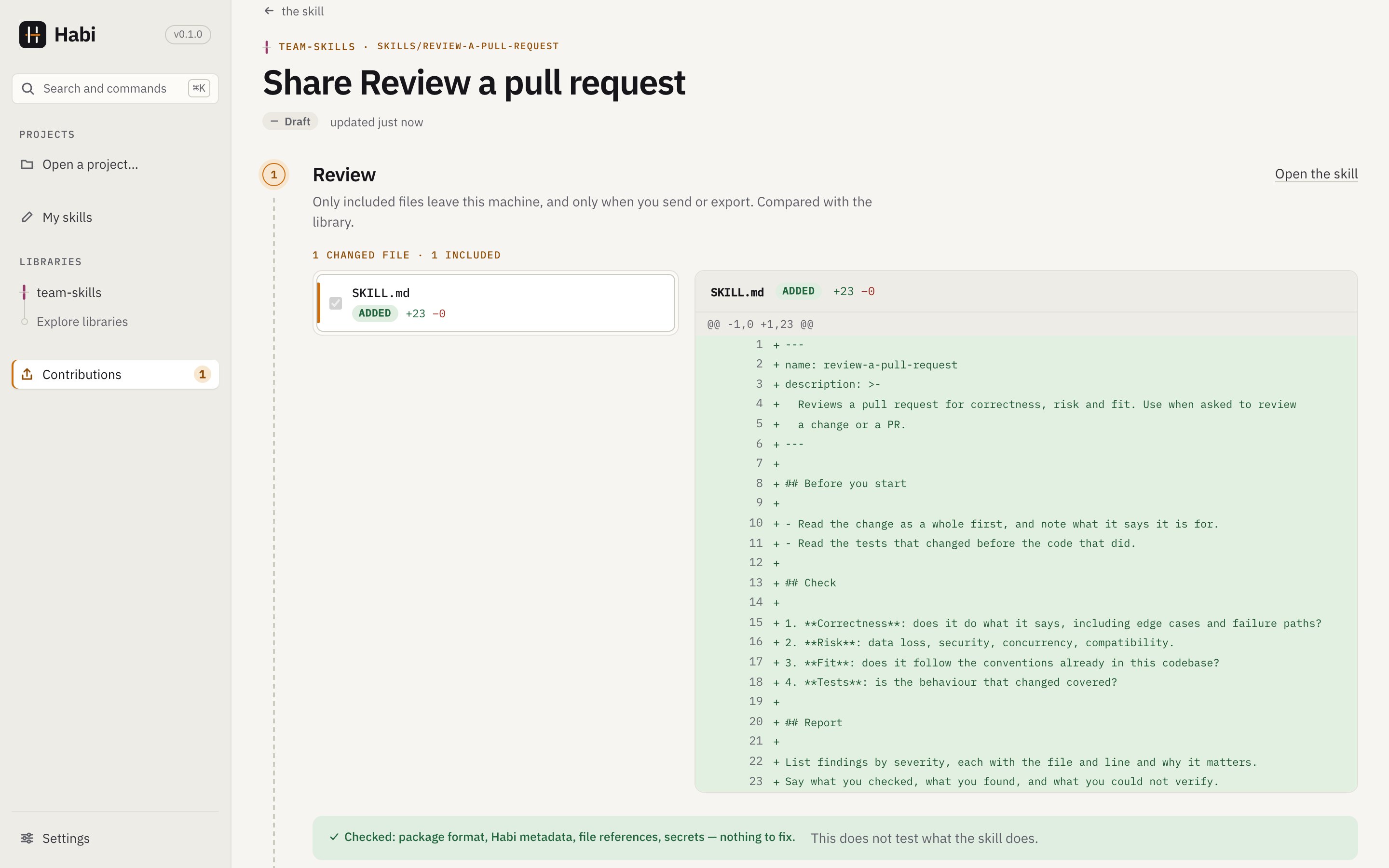
Exclude a file? Untick it to keep the library's version. (New skills can't omit SKILL.md.)
Validation checks the package format, metadata, file refs, and scans for secrets. Errors block you; warnings do not. Passing validation doesn't test what the skill does—only its structure.
Step 4: Prepare the branch#
Title & description. Explain what you're sharing and why—this becomes the PR description.
Add where it applies (optional). Auto-adds which of your open projects this skill fits.
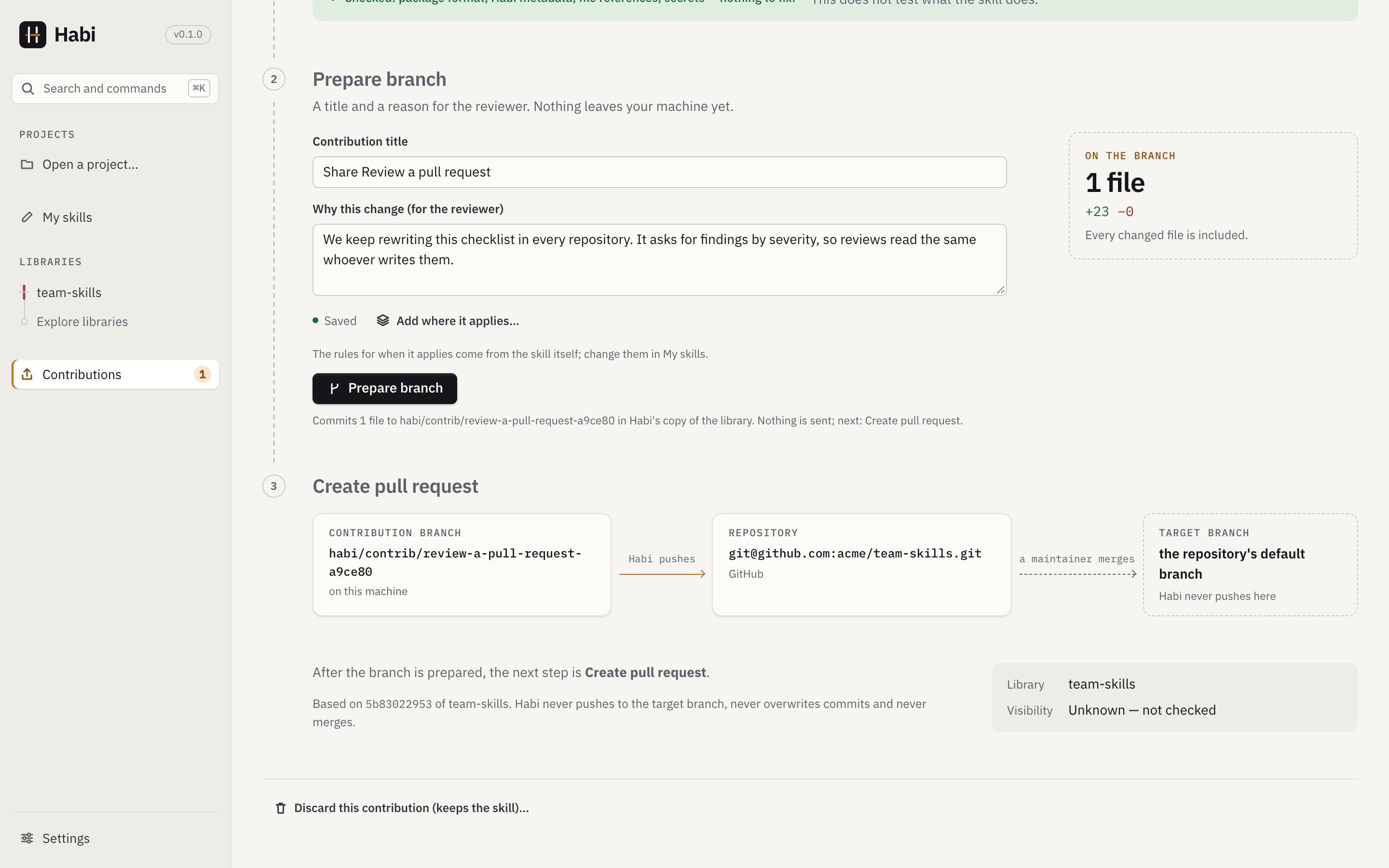
Habi commits to habi/contrib/<name>-<id> in its own copy of the library. Your branches stay
untouched. Nothing is pushed yet.
Step 5: Send it#
A confirmation shows destination (library, host, branch) and files to send. Habi pushes using your Git credentials.
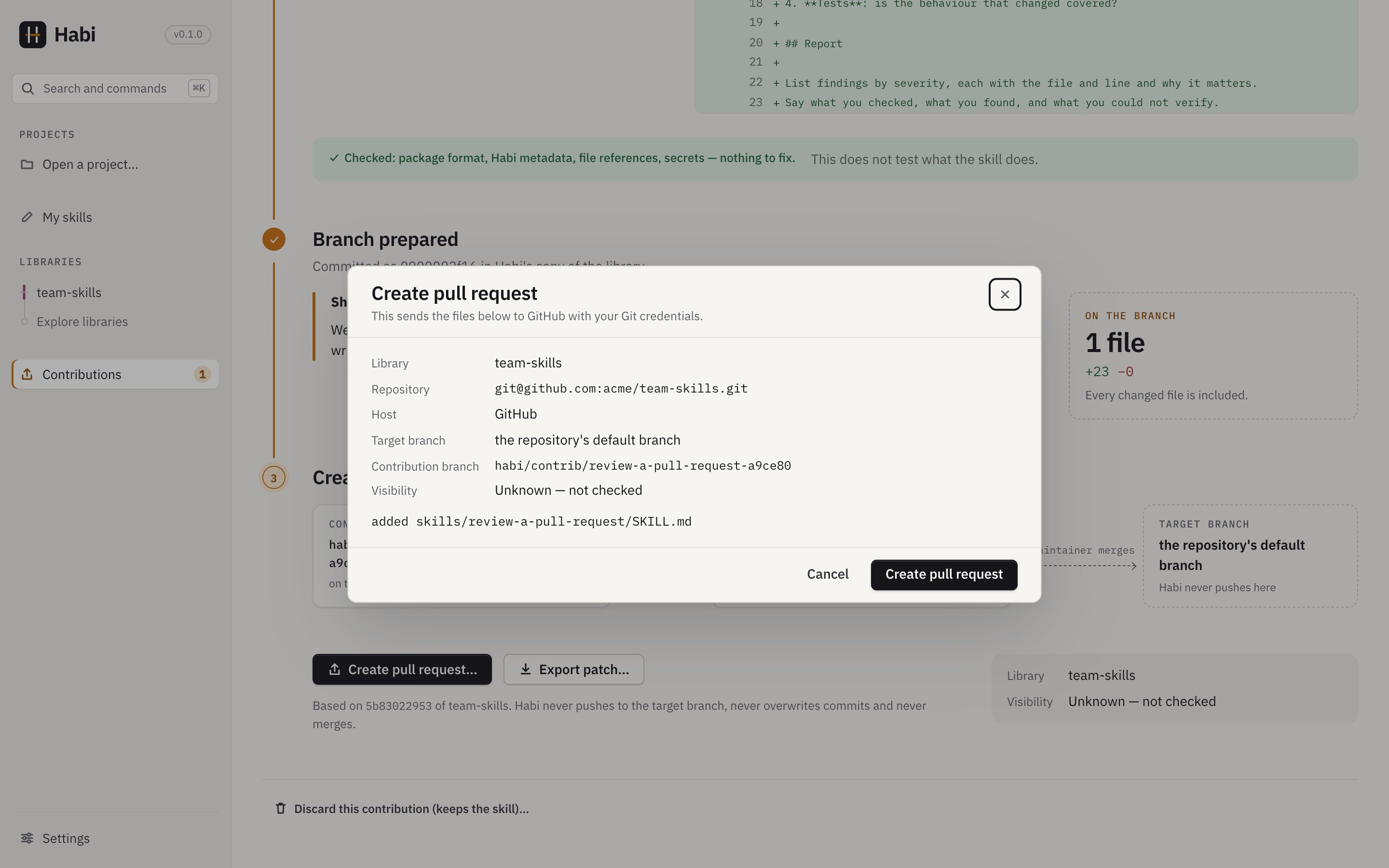
Options:
- Create pull/merge request — if
ghorglabis installed & signed in - Push branch — without the CLI tools
- Export patch — for no-push libraries; creates a
git am-compatible file
For a local library, Habi creates the branch via git fetch (no push).
When you cannot push to the library#
After preparing the branch, expand No write access? Contribute through a fork. This route does not attempt a push to the original library:
- Open library to fork opens the repository on its Git host. Use the host's Fork action.
- Export patch… saves the reviewed change as a
git am-compatible patch on this machine. - Clone your fork, create a new branch, and apply the patch with
git am /path/to/exported.patch. - Push the branch to your fork and open a pull/merge request against the original library's intended target branch. If it follows a tag, choose an appropriate target branch on the host.
Fork creation and submission happen in the Git host and terminal. Habi continues to show the contribution as prepared and cannot follow a request created this way. Exporting a patch does not redirect Habi's Send action to your fork. For an unrecognized host, export the patch and follow its own contribution instructions.
Step 6: Follow the review#
Habi doesn't auto-poll. Click Check status anytime to see:
- State (open, draft, changes requested, approved, merged, closed)
- Who approved
- Comments with timestamps
- Last checked time
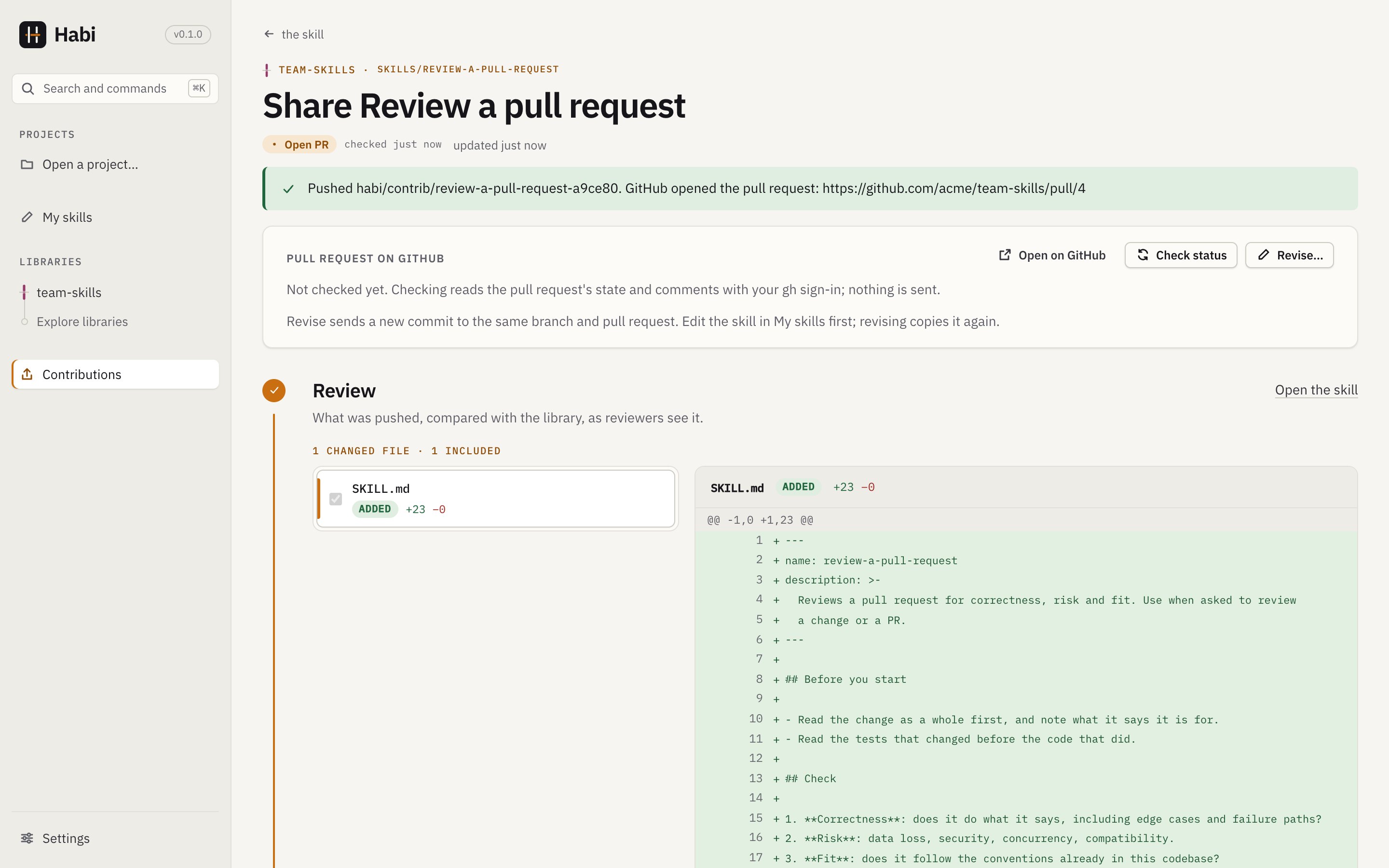
Failed to send? The contribution shows Needs attention with the error. Retrying is safe—branch names are fixed, pushes won't overwrite, and PRs open only when the host doesn't already show one.
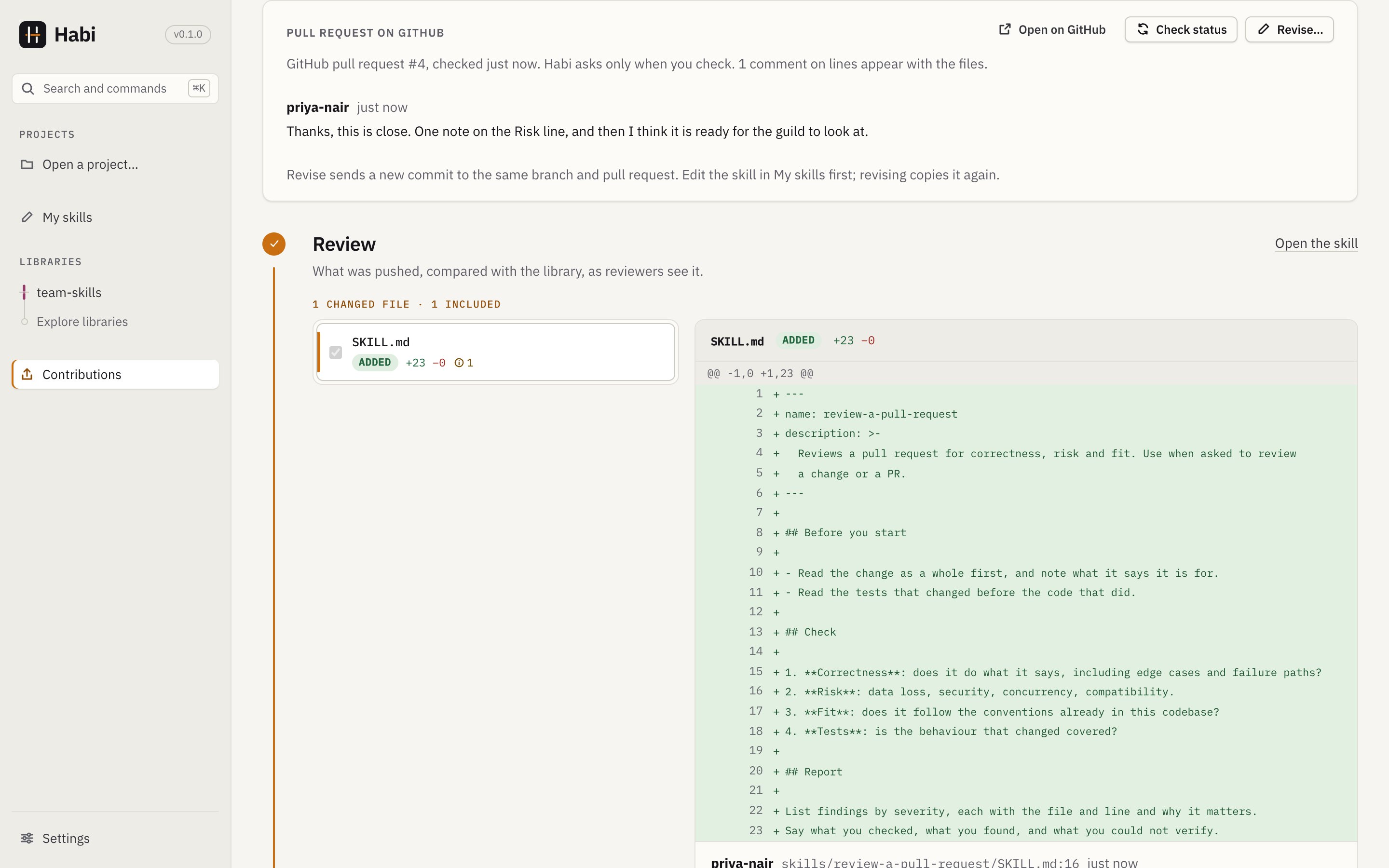
- Comments on a line appear beside that file's diff; the rest are listed in Review. Replying, resolving and merging stay on the host.
- Comments are written by other people, so they are shown as plain text only: no Markdown, no HTML, no links followed, with control characters removed and lengths bounded. Habi reads up to 200 and says when more exist.
- Approved means a reviewer approved. Merging is still up to the maintainers and the host's rules.
Step 7: Revise after review#
Edit the skill in My skills, then return to the contribution and choose Revise…. Habi copies the skill again, you Prepare the revision, and Push revision… adds a new commit to the same branch.
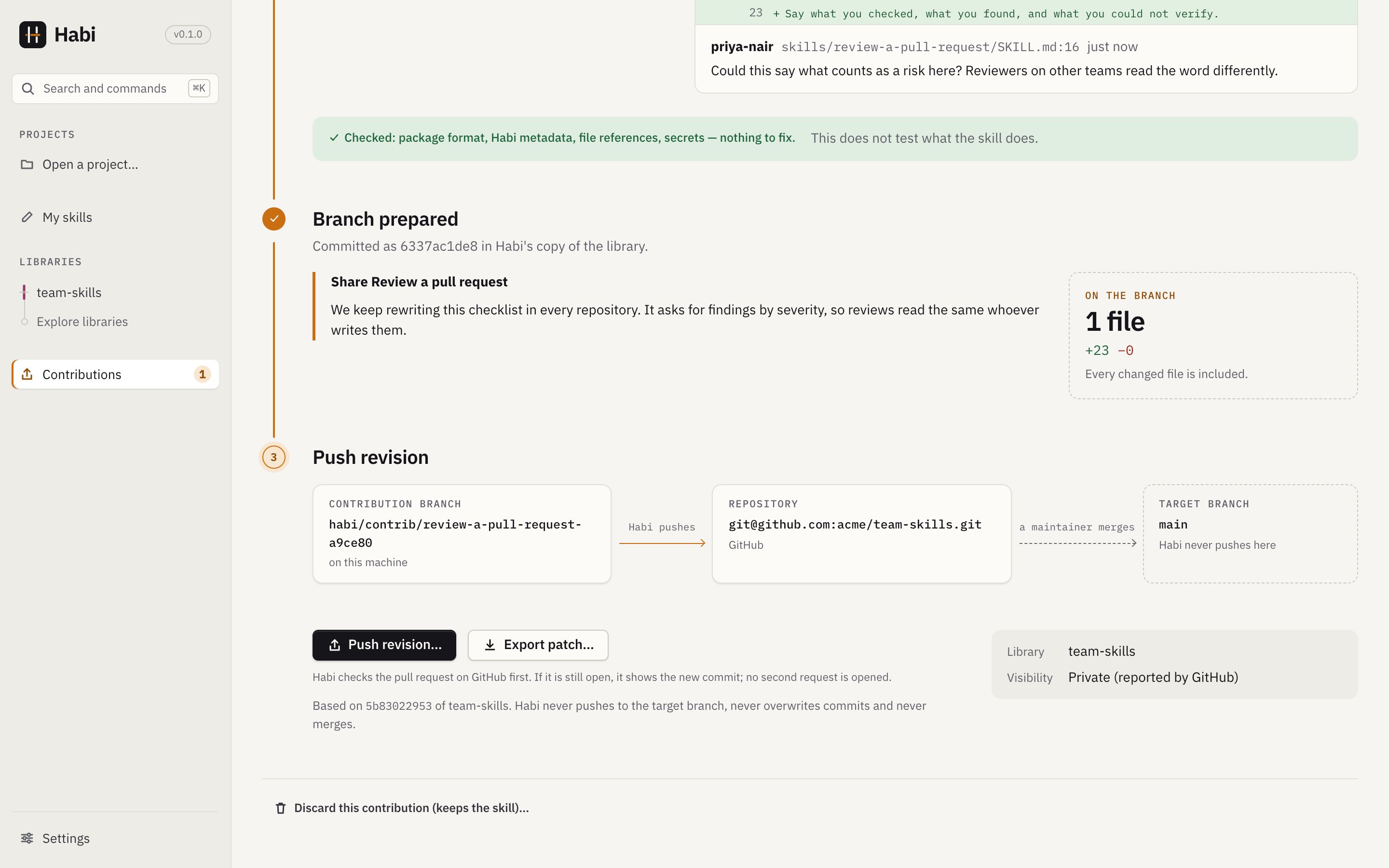
Before pushing, Habi checks the request on the host. If it is still open, it shows the new commit and no second request is opened.
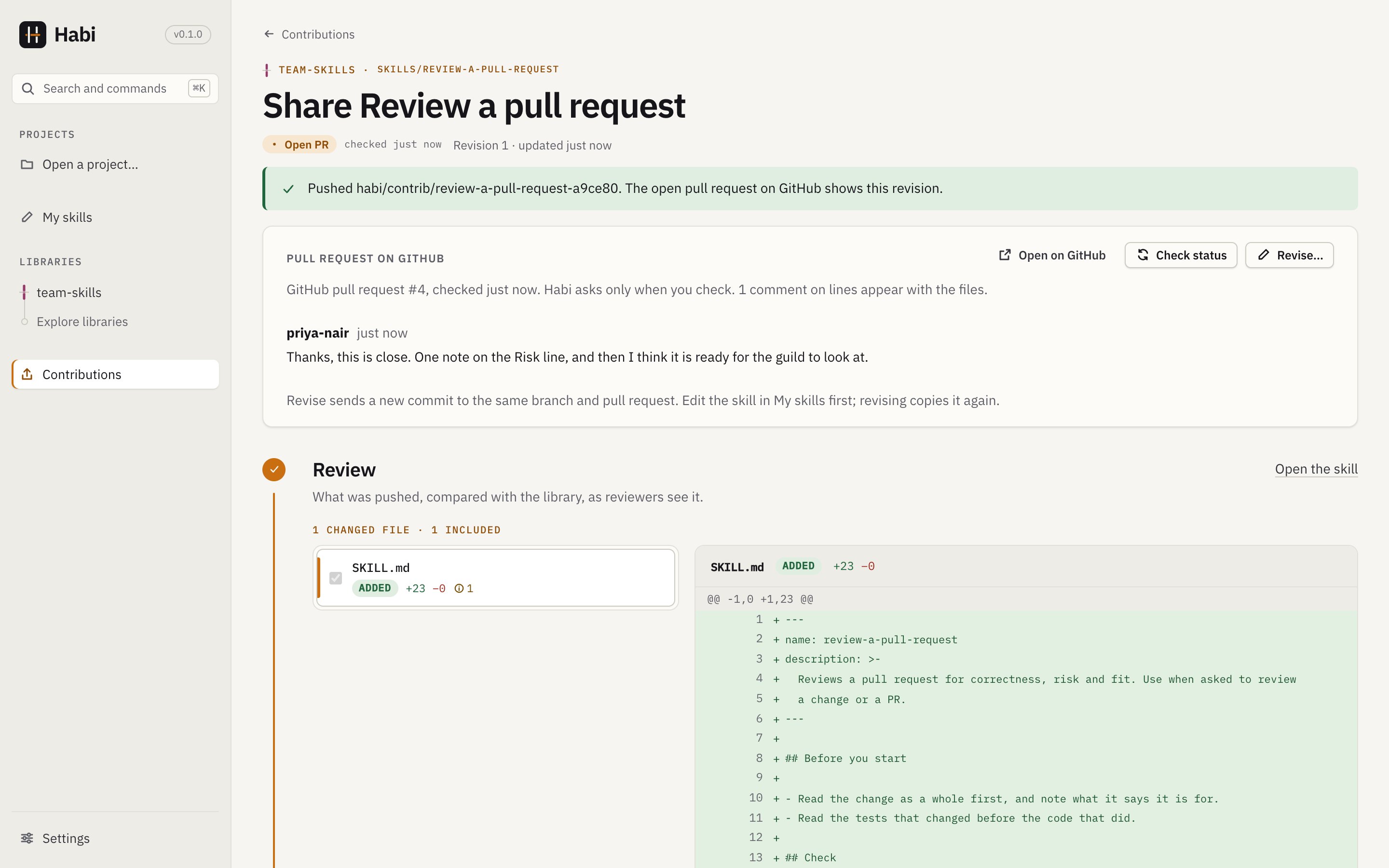
If the request was merged or closed, it cannot be revised: share the skill again as a new contribution. More about revising is under Revising in detail.
What Habi never does#
- It never merges, and never pushes to the branch your team tracks.
- It never overwrites commits on the contribution branch.
- It never reports a remote success it did not observe.
- It never sends anything you have not confirmed, and never collects conversations or files other than the skill's own folder.
Git hosts decide who may push, whether branches are protected and who must review. The
configured source and ref are the team's chosen baseline; Habi does not label every commit
"approved". A library item's owner field is attribution only.
Contribution states#
The Contributions page shows one card per contribution, hung on its library's thread: solid for a team library, stitched for a community one. A card shows the library and branch, the last update, one state ("checked … ago" for states the host reported), three knots for Review, Branch and Send that fill as each step really happens, and one next action: Continue editing, Review changes, Retry or Open PR/MR. What needs you comes first, then requests out for review, then what is settled. Pending contributions are listed apart from approved library content.
| State | What happened |
|---|---|
| Draft | A staged copy exists on this machine. Nothing else. |
| Ready to submit | A commit exists on the contribution branch in Habi's own copy of the library. Nothing was sent. A patch may have been exported; sending it is up to you. |
| Branch pushed | The branch is on the remote, and no pull or merge request was opened (the reason is shown). |
| Open PR / Open MR | gh or glab opened a request, or the host shows one for the branch. |
| Changes requested, Merged, Closed | What the host reported when Habi last checked. |
| In the library | After a refresh, the library's tracked branch contains exactly the contributed files. |
| Needs attention | The last prepare or send failed; the message says why. |
Discarding a contribution removes its staged files and local branch; it can no longer be prepared, exported, sent or checked. A request already open on the host stays open; close it there.
Reference#
What is copied#
Habi copies only the chosen folder into a private staging area in its data folder. Nothing else
is collected. Files the operating system leaves in folders (.DS_Store, Thumbs.db,
desktop.ini) are skipped. The contribution names its staging folder (stagingPath); a
library-item contribution's files are edited there.
A contribution from My skills is a snapshot of the skill when sharing started. If a skill you share under a new name matches a library skill it was not copied from, the review warns that the contribution replaces that skill's files.
Other things you can share#
Besides a skill from My skills, the Contributions page (New contribution) starts a contribution from:
- a skill folder in one of your projects, such as the installed copy you improved;
- an existing library item whose metadata you want to improve.
For these, a form covers title, owner, where it applies (tags, dependencies, file patterns,
all/any), exclusions, prerequisite commands, examples and repository scope. Tags detected in
your project are offered as suggestions; you decide. The form writes habi.yaml (or the
skill's existing habi.yml).
- Only what you changed is written: saving an unchanged form leaves the file byte for byte as it was.
- A change keeps key order, unknown keys, explicit defaults such as
scope: module, the exclusion mode (all/any) and fields the form does not show (a tool'spurposeandinstall_hint, an example'spath). - Comments other than the file's leading ones are lost when it is rewritten.
- Conditions richer than the form can express are kept unchanged.
For a skill from My skills the rules come from the skill itself; change them in My skills.
Checks on the files#
A Markdown file that links to, or names in inline code (like scripts/check.sh), a package
file the contribution leaves out, deletes or renames is an error naming both files. A renamed
file is a removed and an added path with identical content. Unchanged files are one collapsed
group.
Revising in detail#
- Only a version that was sent counts. Revising it makes revision n ("Revision n after review." in the commit message); reopening a prepared-but-unsent version does not.
- Where the files come from. A skill from My skills or a project is copied again from where it lives, and again when you prepare, so edits made there after Revise are included. Form changes made in Habi since are reapplied. A library-item contribution reopens its form and staging folder.
- Prepare adds a commit on top of the one you sent, on the same branch. A revision that changes nothing is refused ("Nothing changed since the version you sent").
- Cancel revision returns to the version you had before Revise (same commit, state, title, message, form and staged files).
- If Habi cannot check the host, revising is allowed and the page says the request was not checked. After pushing it says the branch was pushed and that the request, if still open, shows it, never that it updated the request.
- If someone else pushed to the branch since (for example a reviewer's suggestion), Habi stops and changes nothing. You can choose Build on their commits: their commits stay in the history, and the skill folder then holds exactly the files you staged.
- Before preparing, Habi fetches the contribution branch. Only a branch that no longer exists ("couldn't find remote ref", for example merged and deleted) lets the revision recreate it; network, sign-in and other failures stop with the error, because Habi cannot tell whether someone else pushed.
- Status checks run
ghandglabin an empty folder in Habi's data directory, never in whatever repository Habi was started from. All reviews are read to decide the state.
Git hosts#
| GitHub | GitLab | |
|---|---|---|
| Open a request | gh pr create --repo host/owner/repo |
glab mr create --repo https://host/group/…/repo (full URL, so nested groups work) |
| Status and comments | gh api REST: pulls, reviews, issue and review comments |
glab api REST: merge requests, approvals, discussions |
| "Changes requested" | From each reviewer's latest review | Not reported (GitLab has no equivalent in the REST API Habi uses); approvals are |
| Self-hosted | Recognized when gh auth status --hostname succeeds |
Recognized when glab auth status --hostname succeeds |
github.com and host names containing github/gitlab are recognized by name; other hosts by
whichever tool is signed in to them.
How far this has been tried. The GitHub path was run end to end against a live private
repository for this guide's screenshots: connecting it, preparing and sending a contribution,
gh opening the pull request, reading its state and its line and general comments, and pushing
a revision to the open request. Approvals, changes requested, merged and closed requests, and
self-hosted hosts have not been run live; they are covered with a real Git and a stand-in gh
in tests/review_flow.rs. GitLab is covered only through a stand-in glab in
tests/review_requests.rs, and has not been run against a live host.
Requirements#
- The library must be a Git source (remote or local clone). Folder sources cannot receive contributions; export the skill as a zip instead.
- Git must know your name and email.