Getting started
Habi shows which skills fit your repository, installs them for your agent tools, and carries improvements back to the library. It runs on macOS 11 or later, and on Windows, 64-bit (it needs WebView2, which Windows 10 and 11 include).
Installing#
Download the installer for your system from the
Releases page: the universal.dmg for macOS
(Apple Silicon and Intel), or the .msi or -setup.exe for Windows.
On macOS you can also install with Homebrew:
brew install --cask acltabontabon/tap/habi
Homebrew does not get around the check below, so the first launch still asks you to confirm.
Habi updates itself after that; brew upgrade is not needed.
The installers are not signed by Apple or Microsoft, so the first launch asks you to confirm:
- macOS: open Habi once. When macOS says it cannot check it, go to System Settings →
Privacy & Security and choose Open Anyway next to Habi. On macOS 11 and 12 it is
System Preferences → Security & Privacy → Open Anyway. (Or, in Terminal:
xattr -dr com.apple.quarantine /Applications/Habi.app.) - Windows: when SmartScreen says Windows protected your PC, choose More info, then Run anyway.
You confirm once. Updates after that are signed with Habi's own key, and checked before they install. To build Habi yourself instead, see CONTRIBUTING.
The welcome#
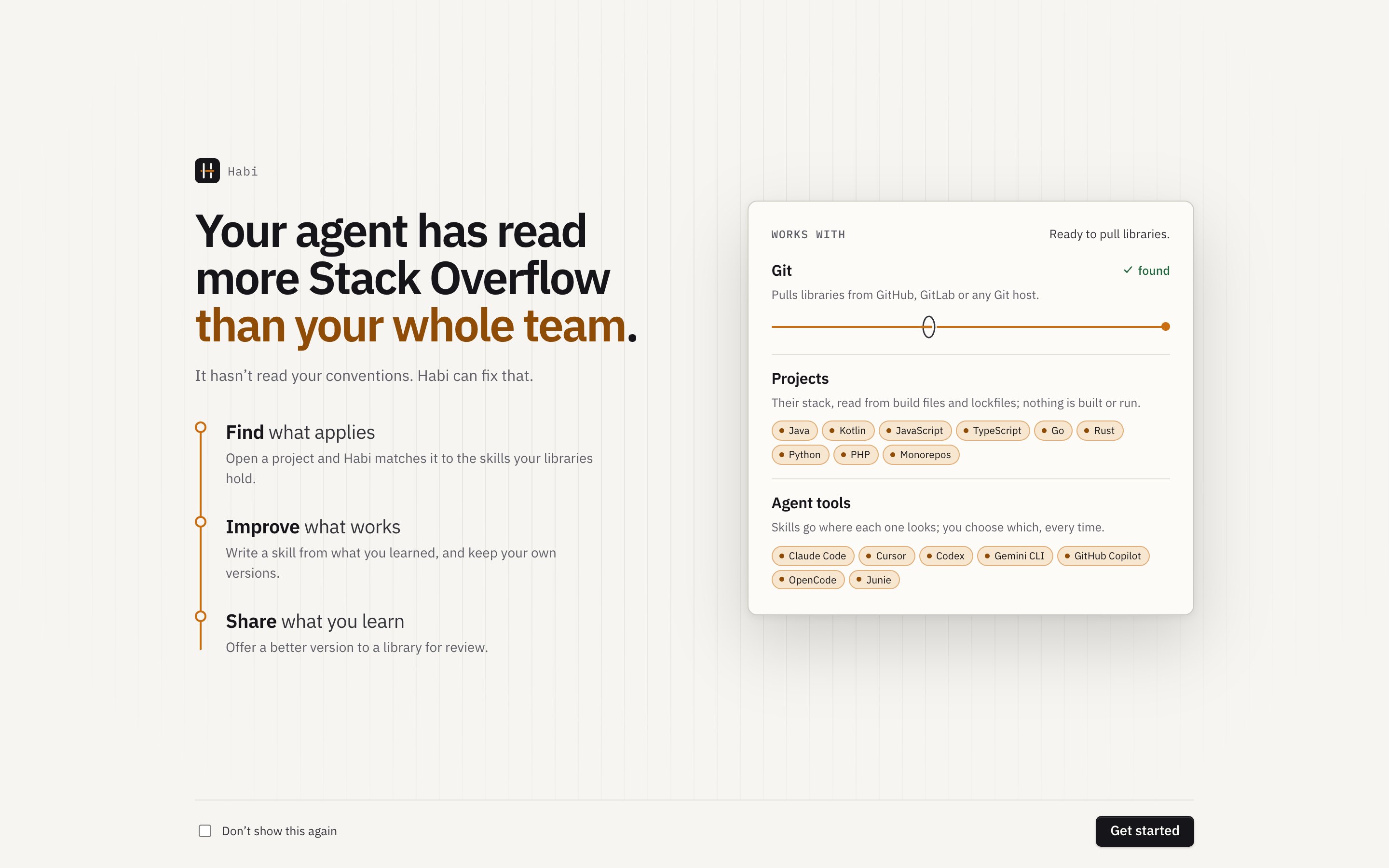
The welcome screen checks your setup. It requires Git (for pulling libraries) and optionally detects GitHub/GitLab CLI for opening pull and merge requests. Disable it anytime in Settings → This machine → Welcome. Its What leaves this machine link, like Privacy and security in the command palette, opens the page that lists everything Habi sends and what it never does.
Try the sample workspace#
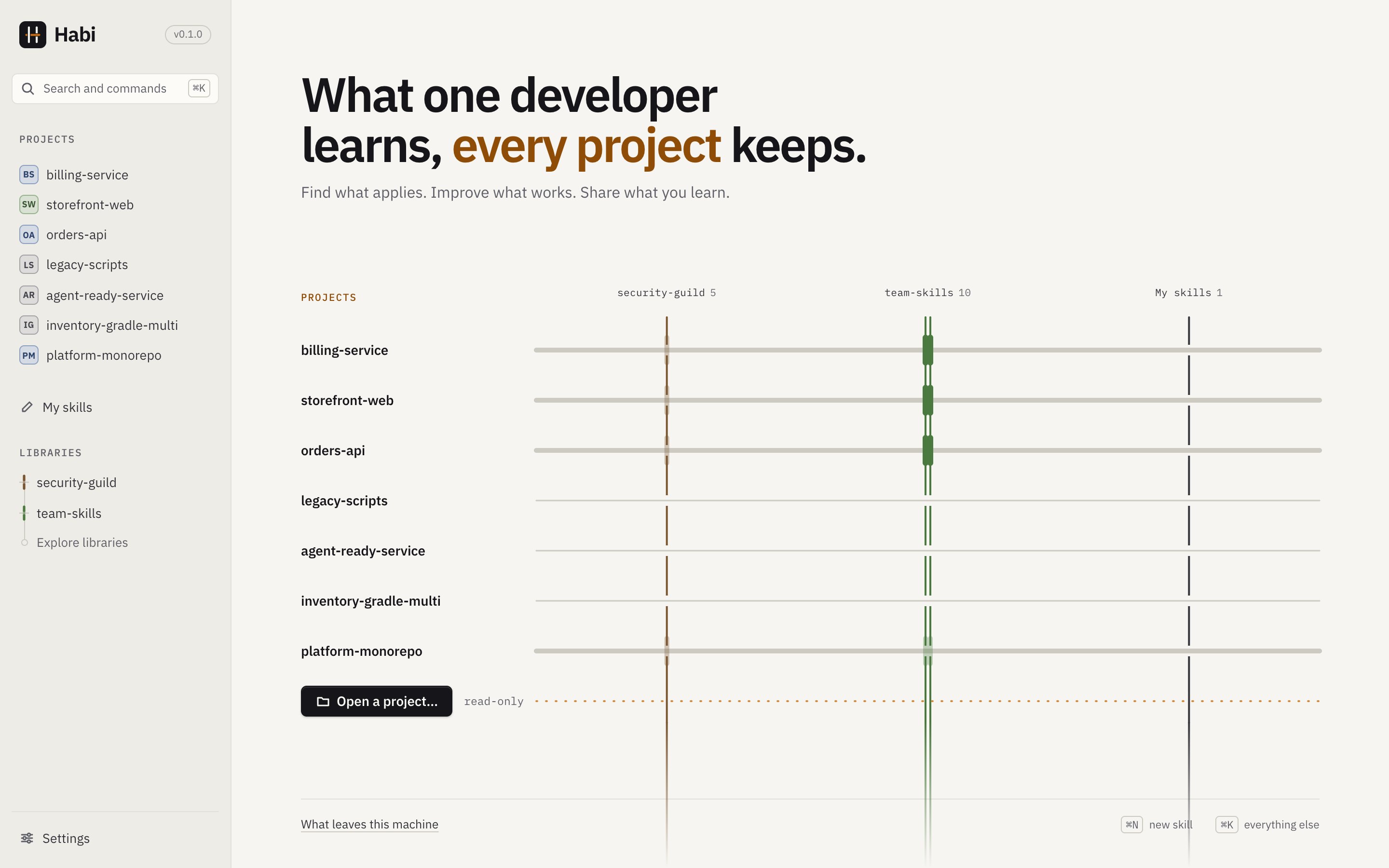
Try the sample workspace to explore without touching your repos. Habi creates two example libraries and seven example projects—all isolated and labeled as samples.
The home page shows your projects as rows, with library skills woven across them: solid lines show installed skills, faded lines show skills that fit but aren't installed yet.
When you are done, choose Remove sample workspace on the banner in any sample project or library, with Remove sample in Settings → Storage, or in the command palette. It removes only the examples.
Where libraries come from#
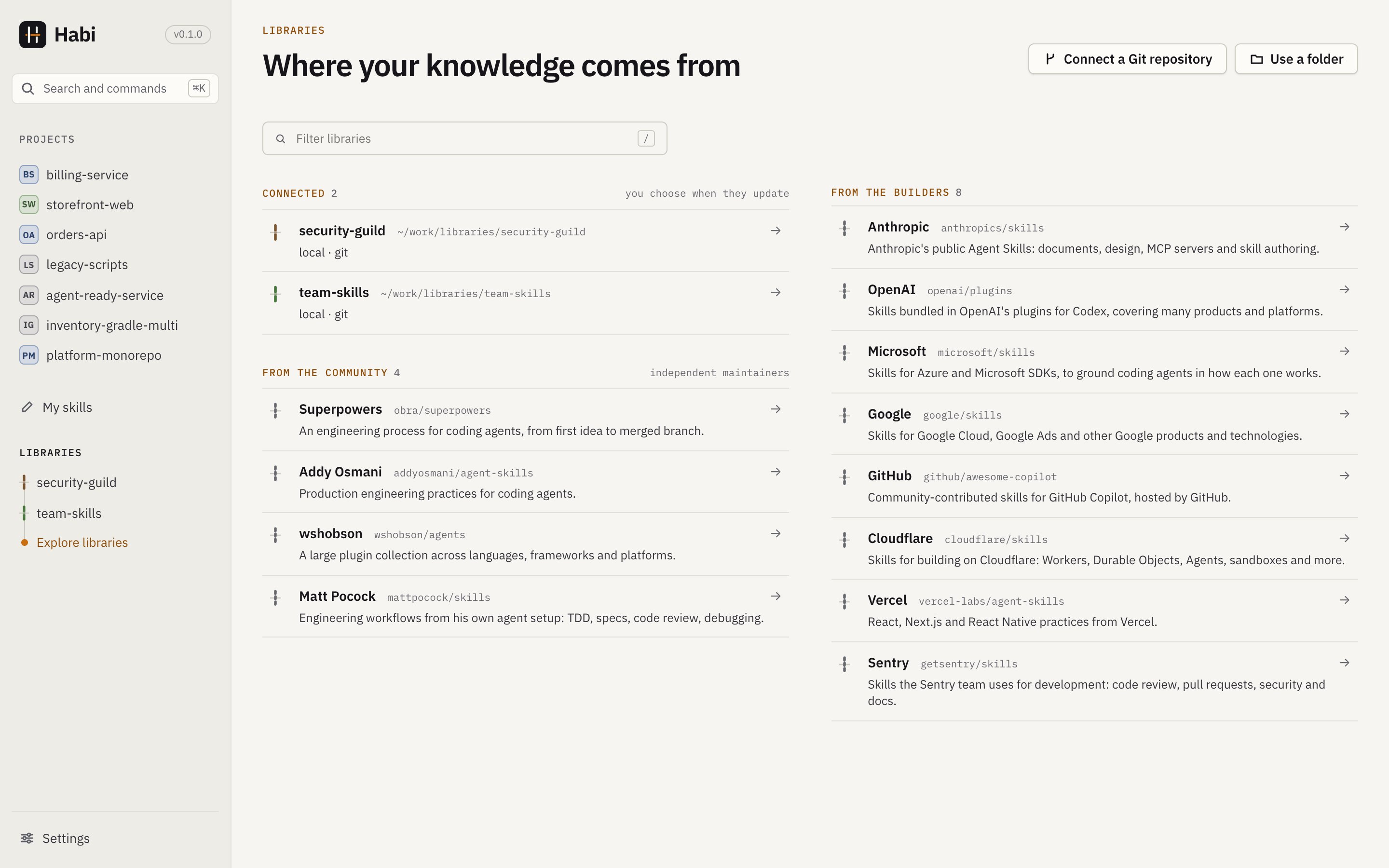
The Libraries page lists what is connected (your team's Git repositories and folders), what the community publishes, and what the builders of the tools publish. Connecting any of them fetches a copy; Habi tells you when something newer exists and updates it only when you say so.
Your first project#
Open a project and pick a repository. Habi reads build files and structure (no execution).
Connect a library to get recommendations. Choose from:
- A Git repository (team-curated or public)
- A public library from the catalog
- A folder on your machine
Read the recommendations. Each shows why it fits, down to the file and line. Missing info (e.g., dependencies inherited from outside the repo) can be answered by you.
Install: Review preselected agent tools, check the files that will change, and confirm. You see every file before anything is written.
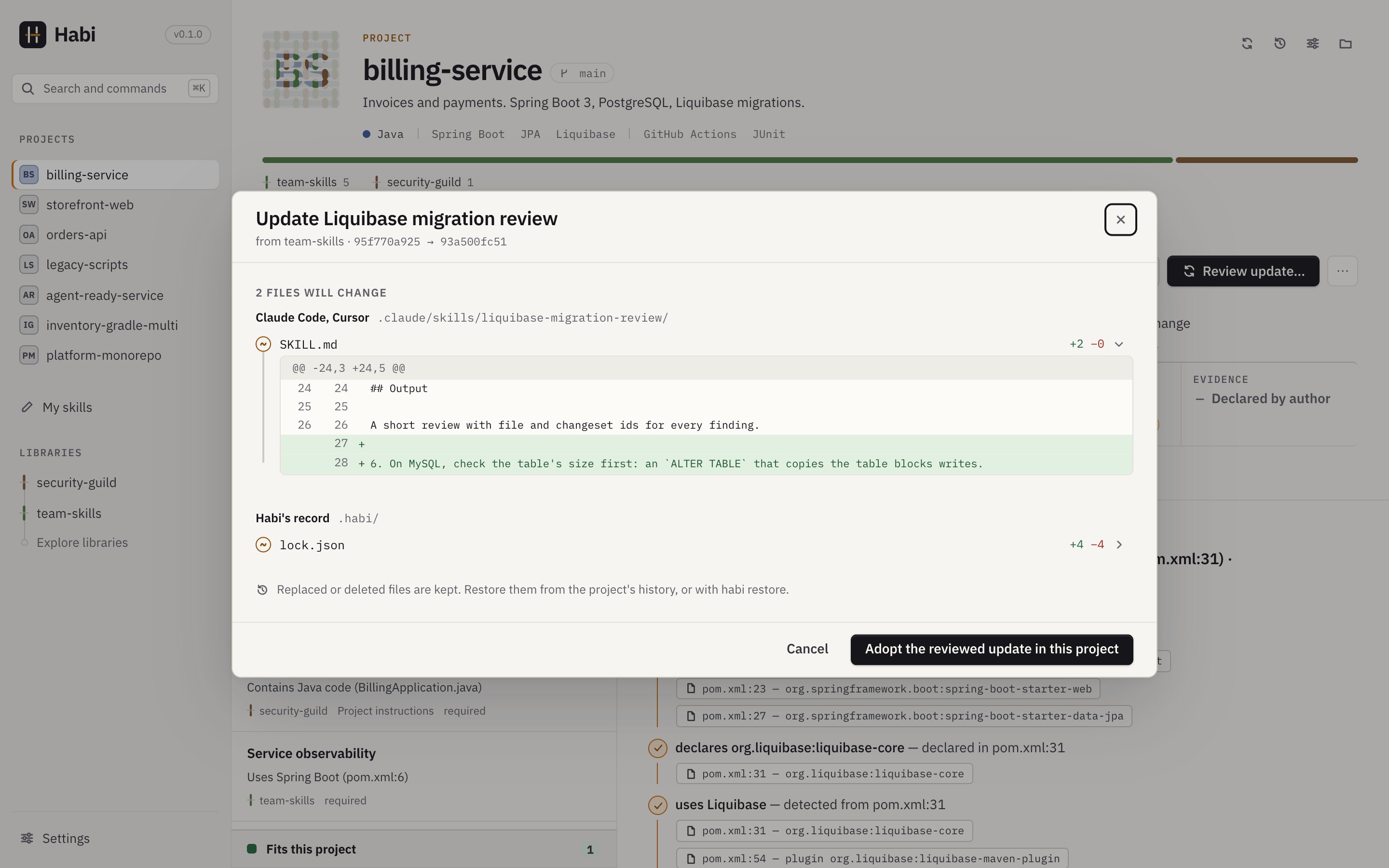
Keep it current. When a library publishes something newer, the project says Update available. Review update… shows what changed, file by file, before anything is written, and keeps your own edits. Skills installed on your machine update the same way, from My skills.
Next: My skills (write and edit skills) or Sharing (send improvements back).
Focus the recommendations#
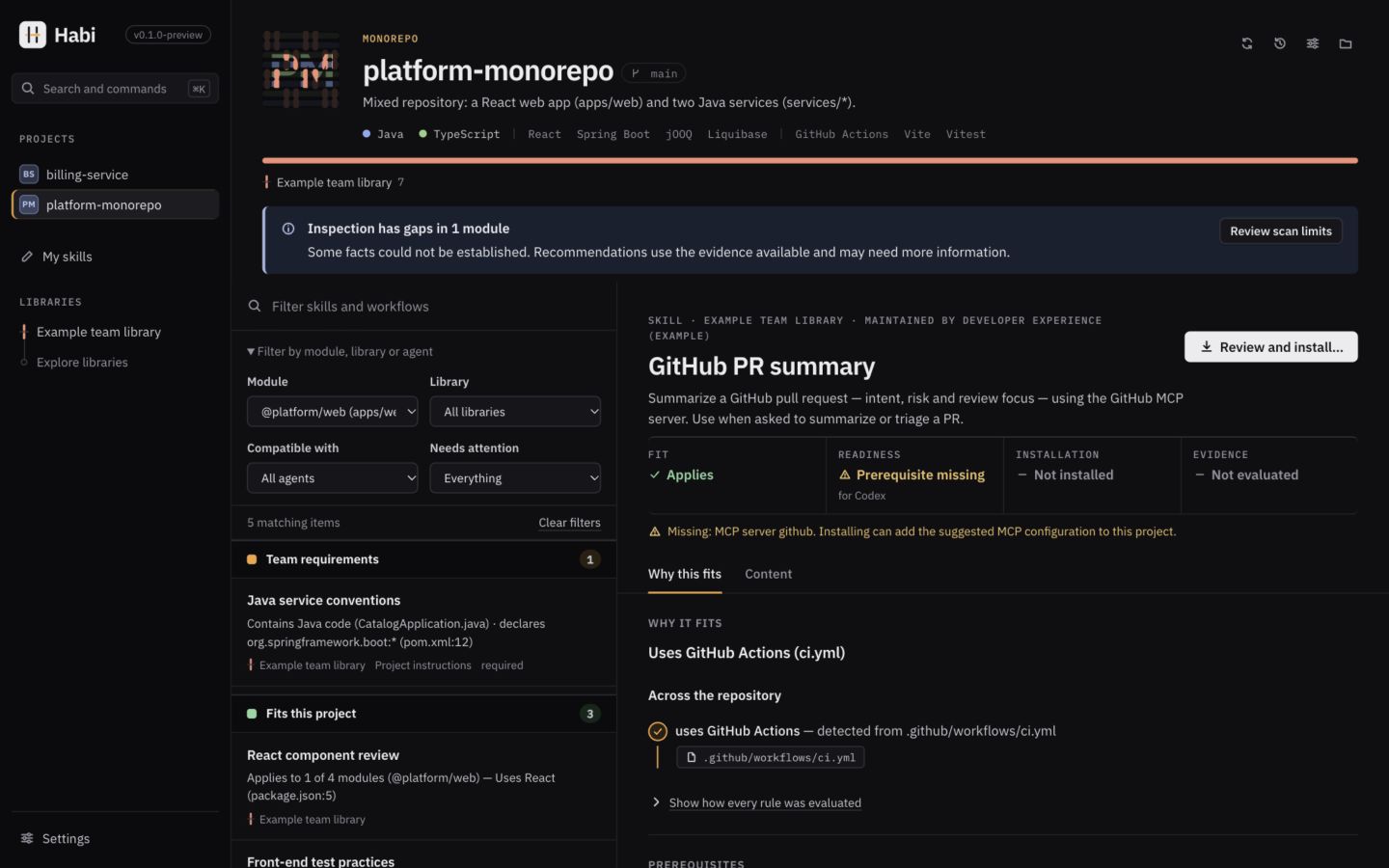
Below the search field, Filter by module, library or agent opens filters for a module, library, compatible agent, and items needing attention (updates, missing prerequisites, unanswered questions, or failed/outdated checks). A module filter keeps skills whose rules hold or remain unknown there, plus skills without rules. The agent filter checks declared compatibility and the readers of existing skill folders; it does not prove the agent loaded anything. Habi remembers these choices separately for each project. Clear filters brings the full list back.
If inspection has gaps, a notice above the list opens Review scan limits. It explains which modules and detectors were incomplete, rather than treating missing evidence as absence.
In an item's Prerequisites, Readiness for shows the chosen agent's own configuration. An MCP entry for Cursor does not establish readiness for Codex. Install review checks the agents selected there too. An entry is only Configured: Habi does not start or authorize the server, and it does not read user-level MCP settings.
Checks and corrections#
A skill can declare checks: commands that confirm it works in your project. They are on the skill's Checks tab. Habi shows the exact program, arguments, folder and time limit first, and lists anything in the command that stands out. The command runs only when you press Run this command. It runs your repository's code on your machine and is not sandboxed.
The evidence summary counts the latest completed result for each declared check in each applicable module. Partially checked means some pairs are still unchecked, or inspection was incomplete. A failure remains visible even if a different check passed later; cancelling a run preserves the previous completed result. An old failure, like an old pass, is marked out of date when the item or inspected project state changes.
Habi notices ordinary source and script edits through file sizes and modification times, without reading their bodies. Changes outside inspection's scope (ignored files, environment variables, external services, or edits preserving size and modification time) are not covered. A passing result establishes only that command's success condition.
When the files can't say whether a skill fits, the Why this fits tab asks, for example Does api use jOOQ?, and you answer Yes or No, with a note if you like. The answer stays on your machine, is labelled You declared this present (or absent) wherever the evidence is shown, and is listed under Project settings → Your corrections. Undo removes it, and recommendations go back to what Habi found.
Keeping Habi current#
Settings → Updates sets how often Habi checks your connected libraries for something newer (Manual, 6 h, 12 h or Daily) and whether it looks for a newer Habi on its own (Check for new releases, Automatic or Manual). The version at the top of the sidebar opens the About page: What's new lists the release notes, Check for updates looks now, and Update and restart installs a newer Habi after checking its signature. Nothing is installed until you press it.
Shortcuts#
⌘K opens the command palette (Search and commands in the sidebar), which reaches every project, library and action. ⌘N starts a new skill, ⌘O opens a project, ⌘, opens Settings and ⌘[ goes back. Shortcuts shown as ⌘ are Ctrl on Windows.
What Habi writes#
In your project (only after you confirm):
- Skill folders in
.claude/skills/or.agents/skills/ - A managed section in
AGENTS.mdwith import line inCLAUDE.mdorGEMINI.md - MCP server entries (optional)
.habi/lock.jsonto track installations
On your machine:
- Skill folders in
~/.claude/skills/or~/.agents/skills/ ~/.habi/lock.json
See Agent tools for exact file locations. Every change is journaled and can be restored via Recovery.
What Habi never does#
- Runs builds, package managers, scripts or Git to inspect your repo
- Changes your checkout or branches
- Sends anything about you or your projects unless you share it
- Uses accounts, telemetry or cloud services
The few requests Habi makes on its own (the update check, the library check and the catalog's public repository figures) are listed on the Privacy and security page.
Removing Habi: The app can be uninstalled safely—installed skills and .habi/lock.json remain as ordinary files.