A little room to breathe · macOS & Windows
Less clutter.
More possibility.
Installers from last spring. Eleven goes at the same screenshot. Folders left behind by software you removed months ago. Scuttle rummages through the corners where that collects and shows you what turned up — and why it noticed.
Other systems
Not sure which Mac? Apple menu → About This Mac. “Apple M1” or later means Apple silicon.
Free & open source. Your files stay put until you decide.
01 It rummages
Your computer leaves stuff everywhere. Scuttle looks in the corners. And sorts what it finds into piles.
Downloads, Desktop, application support, caches, screenshots, Steam and Epic. A tidy machine comes back saying so.
0 files looked at · nothing touched
02 It shows its working
Every find comes with its reasons.
Every move, with a look first.
Scuttle keeps three questions apart: how sure it is about what something is, what moving it could disrupt, and whether that's yours to decide. Your own files always are.
Steam has no installation of Old RPG. 6.40 GB stayed behind, untouched for 142 days.
Why Scuttle noticed
- Steam has no installation of Old RPG
- Untouched for 142 days
- Contents look generated — 91% cache and logs
- Looks like save data — one file in here
Before anything moves
One thing, 18.0 MB, would go to the Drawer.
~/Downloads/chapter-draft.pdf
One file · Your file
Nothing is deleted. Restore it while it is still in the drawer — to where it was, never over anything newer.
Installed apps are left alone.
Scuttle recognises an application by how it is built — an updater beside its versions, a program beside its libraries, an app bundle — whatever a registry says and whether or not it's running. It is never suggested, and never swept up with anything else.
03 It goes in the drawer
Nothing is deleted. It's put away.
Picked things move to a holding folder, and Scuttle writes down where each came from. Putting one back is one button — into the folder it left, recreated if it's gone, beside anything newer rather than over it.
Caches and re-downloadable installers let themselves go after the days you choose. Everything else stays until you say.
04 It lives in the corner
A burrow in your menu bar.
If you want it there, Scuttle keeps a small icon in the menu bar or system tray. Click it and Scuttle peeks out with where things stand. It never starts anything by being opened, never shouts, and goes quiet the moment you ask it to.
Off by default. So is checking on its own.
I found things. I have questions.
- Last look
- 3 days ago
- Worth a look
- 23 · 4 suggested
- In the Drawer
- Nothing
Click the little crab up there ↗
A little space.
A clearer view.
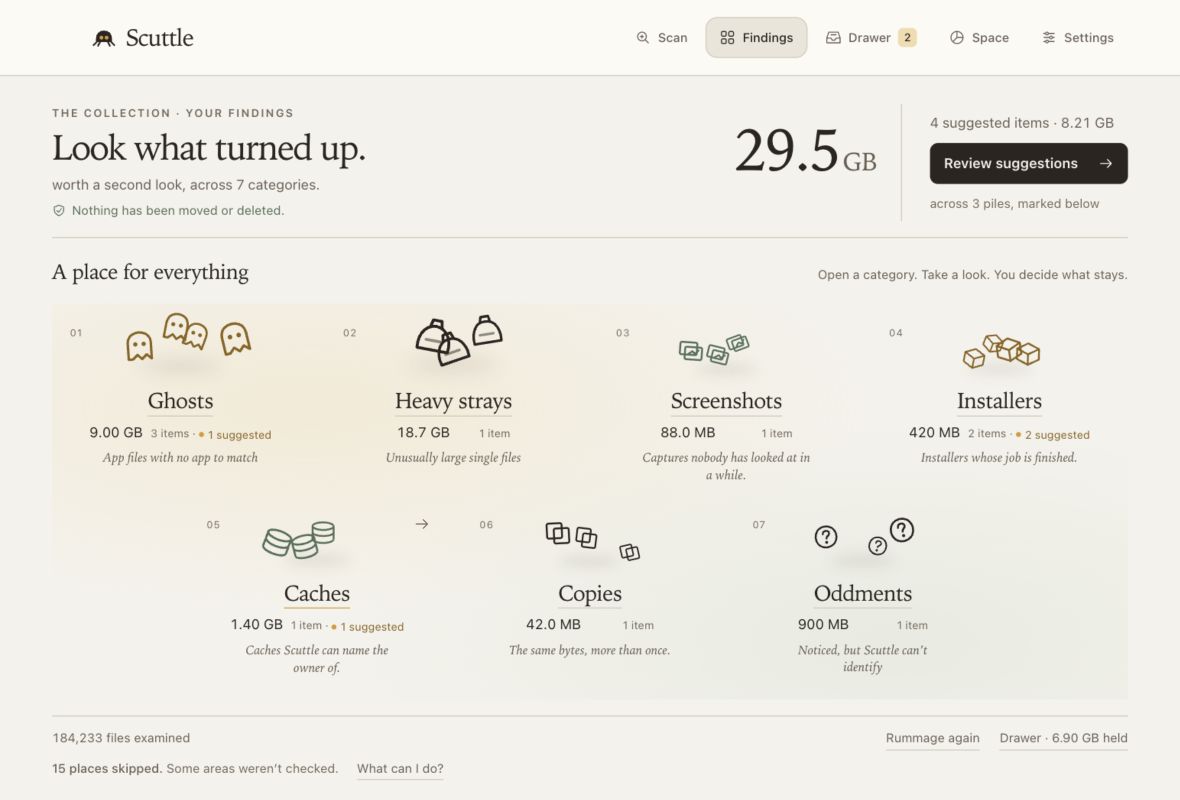
Start with one clear action. Browse illustrated categories, search for a file, or sort by size. The drawer keeps a way back while your files are still there.
Updated interface preview with sample data. The recorded walkthrough shows the previous interface.
? Reasonable questions
You probably want to know…
Does it delete anything by itself?
A scan never moves or deletes your files. Moving something to the drawer follows your review; emptying it is a separate action you confirm. Only eligible files that can be rebuilt or downloaded again expire automatically, after the retention period you choose. Your own files, application data, and items moved past a caution stay until you remove them.
What does it look for?
Leftovers from software you removed, screenshots nobody looked at again, installers that already did their job, byte-identical copies, caches it can trace to their owner, unusually large files, and build debris if you switch it on. What it can't name goes into a pile called Oddments rather than being dressed up as a conclusion.
Could it break an app?
It's built not to. Anything shaped like an installed or portable application is recognised and left out of suggestions and batches. You can still move an application folder yourself, one at a time, with a plain warning that it will probably stop working until you put it back.
Does the drawer free up space?
Not yet. The drawer is a folder on the same disk, so a held file takes up what it did before. The space comes back when you empty the drawer — and not a moment earlier.
What if some places couldn’t be scanned?
The findings are from the areas Scuttle could check. Open “What can I do?” beside the skipped count for help. Permission issues may need folder access; files that disappeared during the scan may simply have moved or finished downloading. You can review scan folders, retry, or keep browsing the findings. Scuttle reports counts rather than a list of skipped paths.
On a Mac, check Scuttle in System Settings → Privacy & Security → Files & Folders. Allow only folders you want scanned. Some system folders remain restricted. Apple’s guide to folder access explains the controls.
Does it phone home?
No account, no server, no telemetry. The one request it makes is asking GitHub, about once a day, whether a newer version exists — and it always asks you before downloading or restarting. A switch in Settings turns even that off.
Why does my Mac or PC warn me about it?
There's no paid code-signing certificate behind it, so neither system can say who made it. Once each:
macOS — open it from Applications, then System Settings → Privacy & Security → Open Anyway.
Windows — SmartScreen: More info, then Run anyway. No administrator prompt.
Nothing here asks you to switch a protection off. The installation notes go further.
Go on, then.
See what it drags out.
Free. Open source. macOS & Windows. Apache 2.0.